 Watchd
How to import a TV Time export into Trakt, Simkl, Moviebase or Watchd
If you saved a TV Time export before the app shut down, four trackers will take that file: Trakt, Simkl, Moviebase and Watchd. Each one gets it a different way, through a different account, and brings over a different slice of your history. I build Watchd, one of the four, so below I stuck to what each company's own pages say, and marked where I couldn't confirm a detail.
Which file you need
Both kinds of TV Time export work for this: the official GDPR data request (tv-time-personal-data.zip) and the one from the "TV Time Out" browser extension (tvtime-export-….zip). If you're not sure which one you have, or what's actually inside it, that's covered in what's inside your TV Time export. This guide picks up from there, once you know where the file is.
TV Time shut down on July 15, 2026, and there's no way to request a new export now. Everything below assumes you already have a saved file.
The short version
| App | Account | How it gets your TV Time data | What comes over |
|---|---|---|---|
| Trakt | Free (VIP optional) | Upload the saved file | Watch history, dates, ratings |
| Simkl | Free account, but this import needs PRO or VIP | Upload the saved file | Watched shows, episodes and movies |
| Moviebase | None of its own; connects to Trakt | Indirectly, by syncing with a Trakt account you've already imported into | Whatever made it into Trakt |
| Watchd | None | Upload the saved file, read on your iPhone | Watched episodes and movies, with dates |
Trakt: free account, works on the web and on your phone
- Create a free account at trakt.tv, or sign in if you have one.
- Go to Settings, then Import.
- Choose TV Time as the source and upload your saved export file. The old option to connect a TV Time account directly won't work anymore, since TV Time's own site is offline; the file upload is what's left.
- Wait for it to process. Large histories can take a few minutes.
- Check the results: titles that didn't match get flagged, and you can fix those by hand.
A free account is enough for this import; Trakt VIP ($59.99 a year, per the comparison table) only raises the limits on watchlists and personal lists. Comments and reactions from TV Time don't come across, only watch history, dates and ratings.
Simkl: PRO or VIP needed for this one
- Sign in to Simkl, or create a free account.
- Open its TV Time import page.
- Upload the ZIP. If it's the password-protected export from the "TV Time Out" extension, paste the password in the field next to it.
- Let it run and review your watched shows, episodes and movies afterward.
This is the one catch: Simkl's free plan doesn't include the TV Time importer. You need PRO ($34.99 a year) or VIP to use it, a restriction that doesn't apply to its imports from some other services. TV Time comments and reactions aren't part of what transfers.
Moviebase: no TV Time import of its own
Moviebase doesn't read a TV Time file directly. The documented path is to import into Trakt first (above), then let Moviebase sync with that Trakt account:
- Finish the Trakt import above.
- Open Moviebase, go to its settings, and connect the same Trakt account.
- Let it sync. Your watched shows, episodes and movies from Trakt appear in Moviebase; nothing from the TV Time file reaches Moviebase that didn't already land in Trakt.
Moviebase runs on iPhone, iPad, Android and supported Macs, is free to download, and sells an optional Premium for removing ads and unlocking stats; it doesn't require an account of its own beyond the services, like Trakt, that you choose to connect.
Watchd: no account, file never leaves your iPhone
Watchd reads a TV Time export on the device, no account and nothing uploaded anywhere:
- Open Watchd, go to Profile, then Data.
- Choose "Import from TV Time" and pick your saved file (ZIP, or the CSV/JSON files from inside it).
- Keep the screen open while it matches your shows and movies.
- Watchd shows how many episodes and movies were imported and what couldn't be matched.
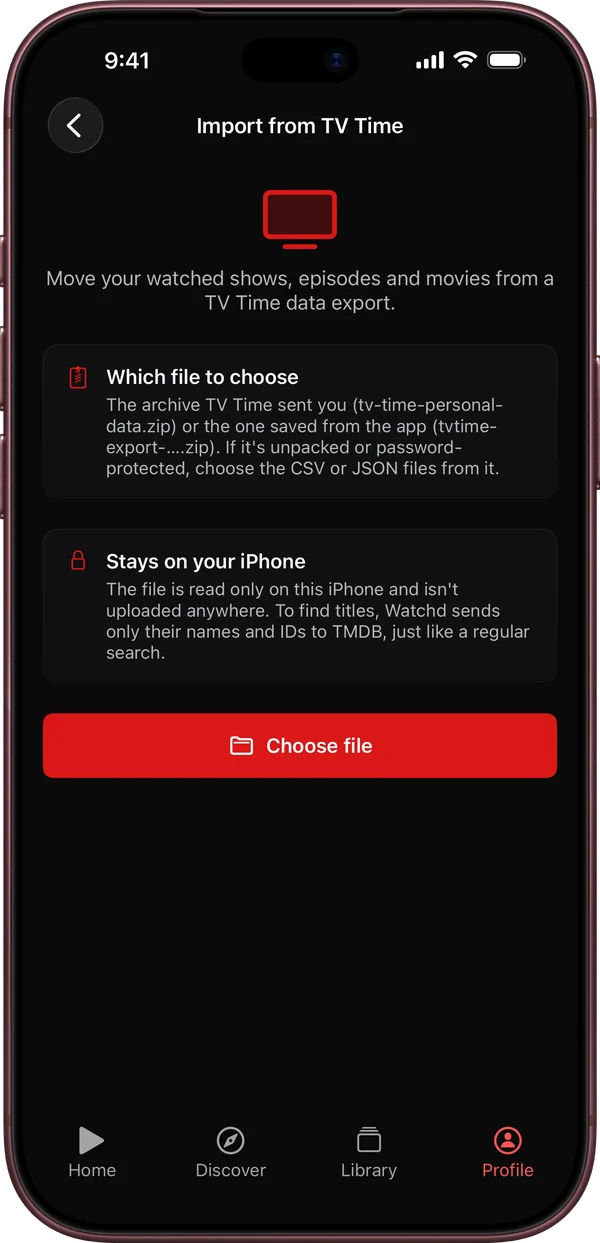
It brings over watched episodes and movies with their dates; shows with every aired episode watched go to Watched, the rest to Watching. Ratings, comments and rewatches don't come over, and importing the same file twice only adds what's missing. Full steps and screenshots: how to move your TV Time history to Watchd.
What doesn't come over, anywhere
None of the four treat TV Time comments and reactions as something to import, so those are gone for good once you've saved your export. Beyond that, what you keep depends on the app: Trakt and Simkl distinguish a watch from a rewatch in their own systems but only Trakt's importer is confirmed to bring ratings in from TV Time; Watchd keeps only the date of the first watch. Shows you'd only added to a watchlist, never marked watched, transfer in Trakt and Watchd but weren't confirmed either way for Simkl or Moviebase, so check your watchlist by hand after importing.
Quick answers
Can I connect my TV Time account directly to any of these? No, not anymore. TV Time shut down on July 15, 2026, and its site is offline, so every path here runs on a file you saved earlier.
Which of these needs no account at all? Watchd. The other three all need at least a free account, and Simkl needs a paid plan for this specific import.
Does importing twice create duplicates? Confirmed no for Watchd: a second import only adds what's missing. The other apps don't say either way in what they publish, so if you try again, check your library afterward.
Can I import into more than one app? Yes, the TV Time file itself doesn't get used up. Keep the original ZIP and you can try it in any of these, or in the other apps that accept a TV Time export.
Which one to pick
- You want your history on the web and on any phone, logged automatically from other apps: Trakt.
- You're deep into anime and already pay for Simkl: Simkl.
- You're already using Moviebase and have (or don't mind creating) a Trakt account to feed it: Moviebase.
- You want nothing to leave your iPhone and no account anywhere: Watchd.