 Watchd
How to move your TV Time history to Watchd
TV Time stopped working after July 15, 2026, and a new data export is no longer possible. This guide is for anyone who saved their file in time. TV Time import is available in Watchd starting with version 1.1.
Which file works
- The archive from a TV Time data request:
tv-time-personal-data.zip. - The archive saved in the TV Time app with “Export my data”:
tvtime-export-….zip. - Files from these archives, if the archive is already unpacked or password-protected: CSV or JSON, such as
tracking-prod-records,tvtime-series-episodes,tvtime-movies. You can pick several at once.
Where to look for the file: your Downloads folder, the email from TV Time, iCloud Drive or Google Drive.
How to move your history
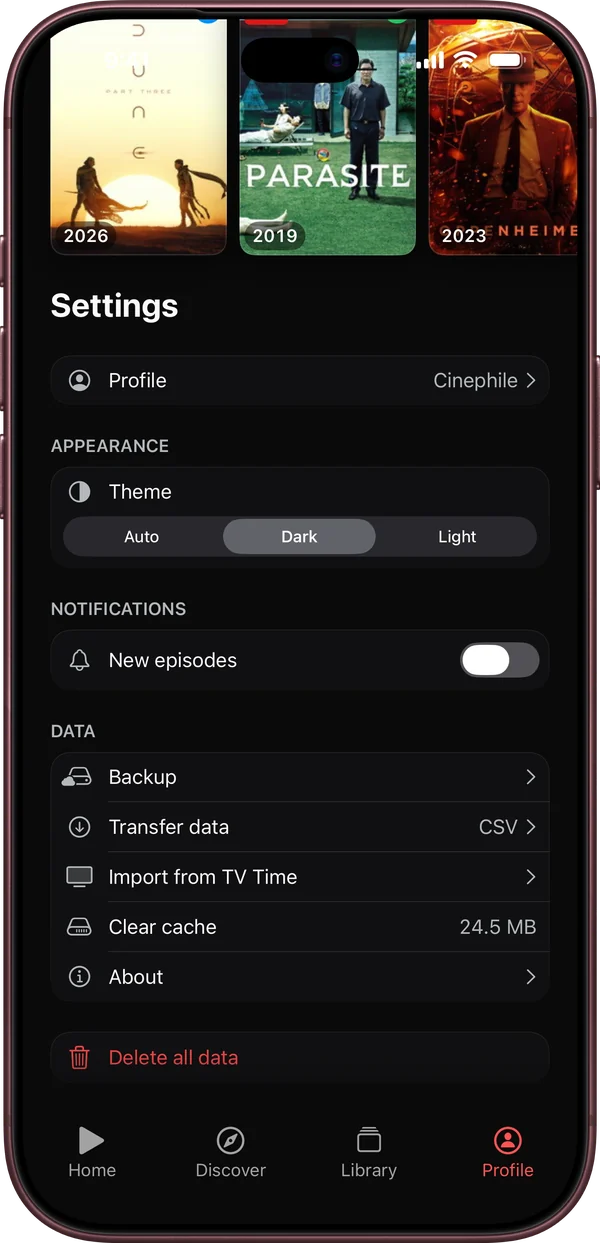
- Open Watchd and go to Profile.
- In the “Data” section, choose “Import from TV Time”.
- Tap “Choose file” and find the archive or the files from it.
- Keep the screen open while the import runs: Watchd reads the file and looks up your shows and movies one by one.
- When it’s done, Watchd shows how many shows, episodes and movies were imported, what was already in your library and what couldn’t be found.
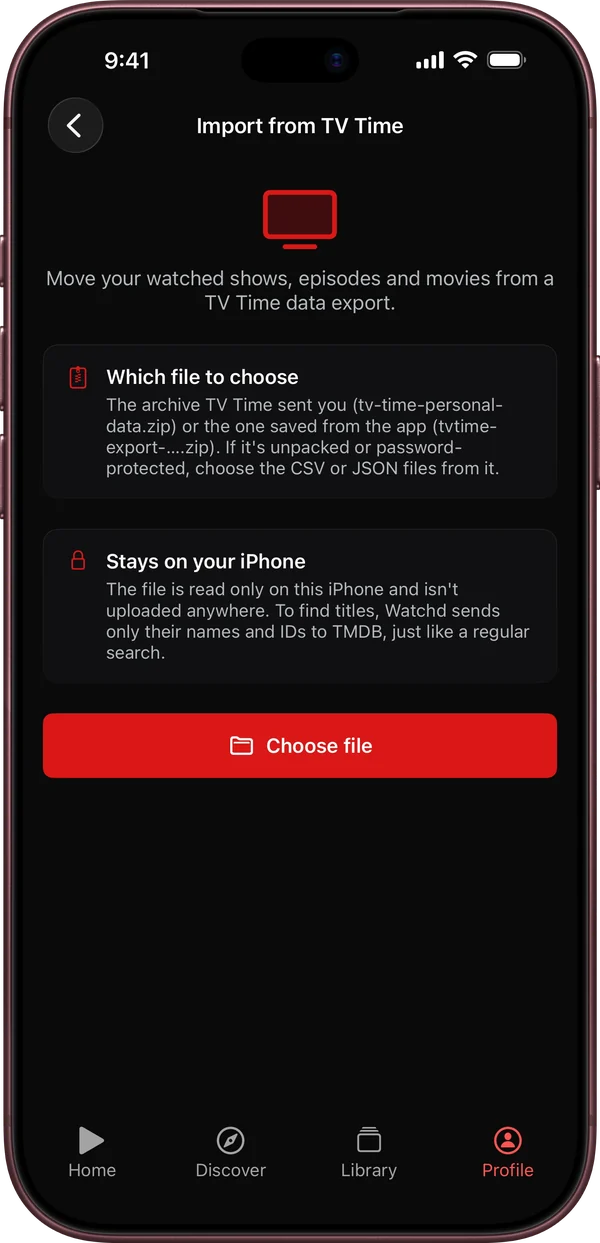
The file is read only on your iPhone and isn’t uploaded anywhere. To find titles, Watchd sends only their names and IDs to TMDB, just like a regular search.
What gets imported and what doesn’t
Imported:
- watched episodes of shows and anime, with their watch dates from TV Time;
- watched movies, with the watch date;
- each show’s status: if every aired episode is watched, it goes to “Watched”, otherwise to “Watching”.
Not imported:
- things you only planned to watch but never started;
- ratings, comments and reactions;
- rewatches: each episode keeps the date of its first watch;
- episodes that aren’t in TMDB: anime sometimes uses different season numbering. Watchd shows how many such episodes there were.
Titles that weren’t found in TMDB can be added by hand with search. If some didn’t load because of a bad connection, run the import again: only what’s missing gets added.
If you don’t have the file
You can rebuild your list quickly. Find a show with search and add it to your library. Then on the home screen, in “Now watching”, swipe its card to the left and tap “Seen all”: every aired episode gets marked.
FAQ
Will importing again create duplicates? No, importing again doesn’t duplicate anything.
What happens to what’s already in Watchd? Nothing gets deleted or unmarked: whatever you marked in Watchd stays as it is, and the import only adds to your library.
Do I need an account? No, Watchd works without an account.
Watchd is not affiliated with TV Time or Whip Media. TV Time is a trademark of its owner.